
Show what you mean: dictation with screenshots
Explain the detail and show it in the same message.
Summary
Dictation with screenshots helps when a message refers to something visible: a particular expense, a button or a chart. Denker lets you draw while speaking and include marked screenshots in apps that accept image pastes. You can then choose a rewrite or translation prompt for the written message. Follow an expense email to see why the combination matters: Lena can read the requested categories and identify the entries you mean from the accompanying images.
Key points
- Mark the subject while explaining it. Your recipient can connect “the train ticket” to the relevant entry without reconstructing its position from a transcript.
- Keep each visual reference with its instruction. Labels such as the train-ticket image and dinner image make several observations understandable in one message.
- Choose a written finish for the recipient. A concise rewrite or German translation can shape your narration while preserving the requested categories and image references.
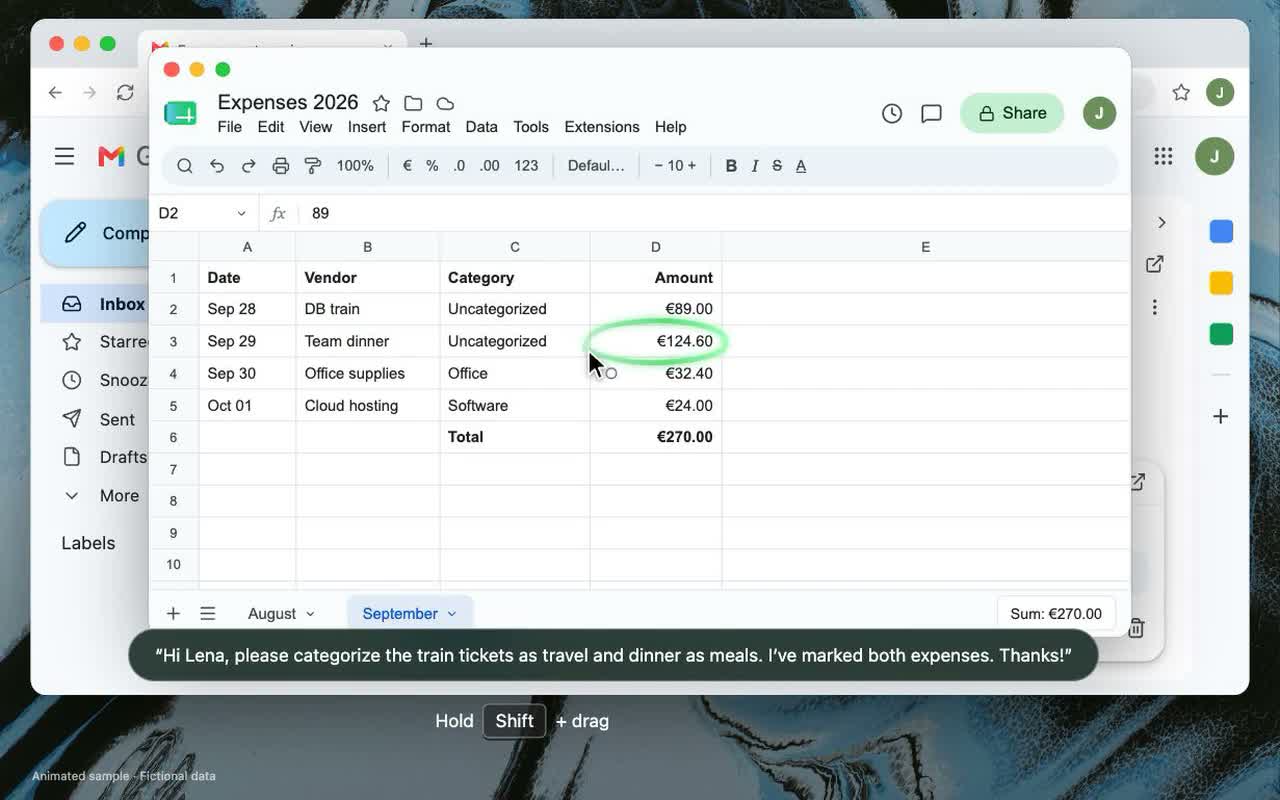
You need to ask Lena to categorize two expenses: train tickets as travel and a team dinner as meals. Both entries are visible in a spreadsheet. Describing which rows you mean adds work before the request itself is clear. With Denker, you can explain the categories while marking the relevant entries, then finish the email with the visual context included.
Why the screenshot belongs beside the explanation
An ordinary transcript can preserve “please categorize these two expenses” while losing what “these” referred to. A marked screenshot gives that phrase a visible subject. The useful result is a message where the recipient can identify the entry and understand the requested action.
The illustrated product film follows this expense task: English speech, marked train and dinner entries, a chosen German finish and an unsent reply with supporting images.
Speak the request while marking the entries
Begin in the destination draft and use Denker’s dictation and marking controls. Point out the train expense as you explain its category, then identify the dinner entry and its category. Naming the item as you mark it keeps the narration understandable.
The public feature announcement describes marked screenshots in apps that accept image pastes. Check the controls in your installed app. Multiple marks on an unchanged view can share one image, so use references that match the captures you actually have.
Hi Lena, please categorize the train tickets as travel and dinner as meals. I’ve marked both expenses. Thanks!
Give the message clear visual references
For two distinct supporting images, refer to the train-ticket image and the dinner image as you explain them. Clear labels keep the requested categories associated with the right evidence when the recipient reads the email later.
A concise English version of the request could read as follows. It is an editorial example of the intended message, using the same fictional expense task.
Hi Lena, please categorize the train tickets shown in the first marked image as travel, and the team dinner shown in the second as meals. Thanks!
Choose a finish that preserves the useful detail
Spoken thoughts can include repetition and corrections. Denker can apply a chosen prompt when you finish dictating, giving the text a purpose such as a concise email, bullet points or translation. For this request, ask for brevity while preserving the two items and categories.
Make this email concise. Preserve the requested expense categories and the references to the supporting images. Output only the rewritten message.
The prompt shapes the narration. Describe the relevant facts aloud so the written result has the information it needs; do not rely on text enhancement to discover unspoken details inside a screenshot.
Use the same visual context with another language
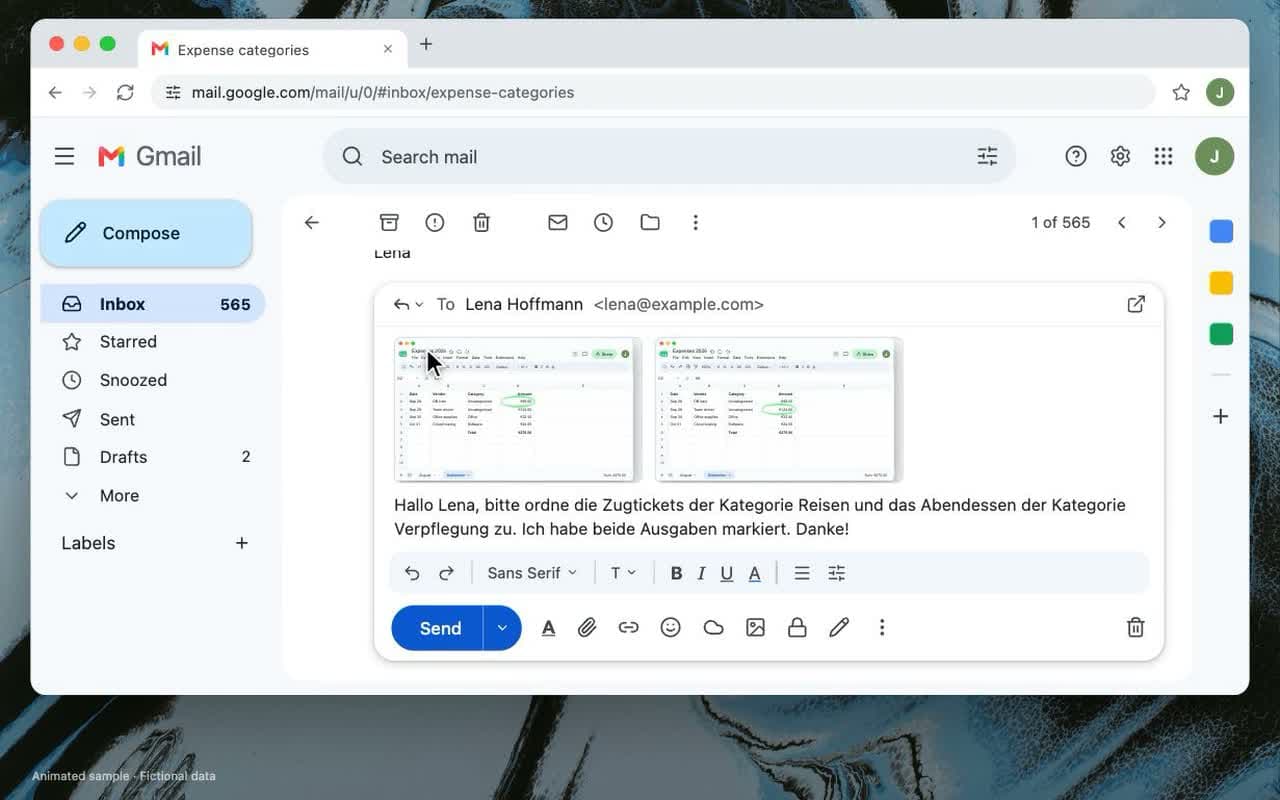
If Lena needs the message in German, choose a German translation prompt instead. The product film shows that finish for the same expense request. The images still identify the entries, while the written reply explains how they should be categorized.
The translation changes the message text; the screenshot content remains as captured. Check that the category names and visual references still express your intent. The illustrated reply shows the kind of combined result this workflow is intended to produce.
Send a message someone can act on
Read the final email alongside its images. Can Lena identify the train and dinner entries, and is the requested category clear for each? Confirm that the images appear in the destination before sending. A useful draft says what should happen and shows the detail it concerns.
The same principle applies to visual feedback on a design, a chart or a form. Start with a clear observation, mark its subject and choose the written finish. For a problem that depends on a sequence of actions, add a short recording only where your installed setup supports it.
Frequently asked questions
What is dictation with screenshots?
It combines a spoken explanation with captured visual references. Denker supports drawing during dictation and including marked screenshots in apps that accept image pastes.
Does every mark create its own screenshot?
Multiple marks on an unchanged view can share one image. Refer to the captures you actually have and inspect the text-image relationship in the destination.
Can I translate the message too?
You can choose a translation prompt when finishing dictation. Review the resulting text and image references; text inside the screenshots remains as captured.